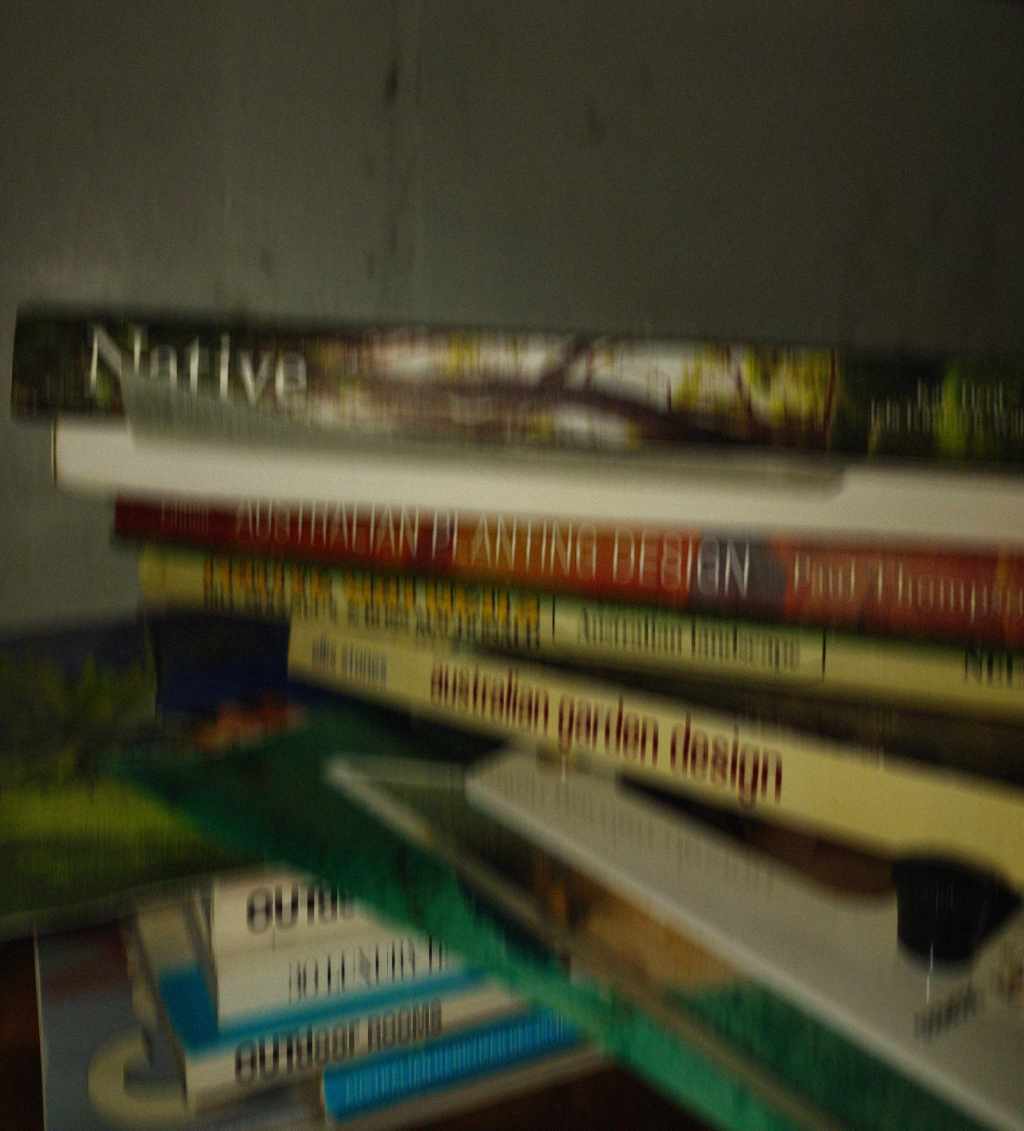
There are things I need to know and things I need to refer to. As any avid reader will know, books area a great source of reference and to recall information you’ve read, you need only remember the book and use the index section to find exactly what you’re looking for. They are physical as well, they have individual qualities you can associate with them, things like size, shape, colour, author and even texture. They can be stored in neat, sorted piles, shelved or strewn about rather randomly on your desk.
The same can not be said for digital sources of reference. I went through the first two years of my degree relying on my brain to remember websites. Silly, silly me. There’s a much more effective method: bookmarking.
I don’t know if everyone already does this, but I’m going to talk about it because it was never mentioned to me, yet it has been one of the most helpful systems I’ve implemented and I only wish I’d done it sooner.
It starts with using Google Chrome. Having Chrome as my default browser gives me access to my Google account and all the benefits that come with it. The ability to simply sign into your Google account from any device and have access to all of your saved passwords, extensions (AdBlocker and DarkReader) and critically all of your bookmarks. I often have necessity to use the university computers to run some outlandishly priced essential software (Adobe I’m looking at you) and so having instant access to what is essentially my browser at home is an absolute treat.
But it was only in second year that I discovered how handy it is to be able to view these long lists of saved websites from any PC or device I’m using. I began by bookmarking sources that were mentioned frequently by other students or tutors, namely sources for png images. As I realised that you could create folders *gasp* this proliferated into visual references (graphics I liked the look of), tutorials, landscape projects, firms and my most extensive collection: plants.
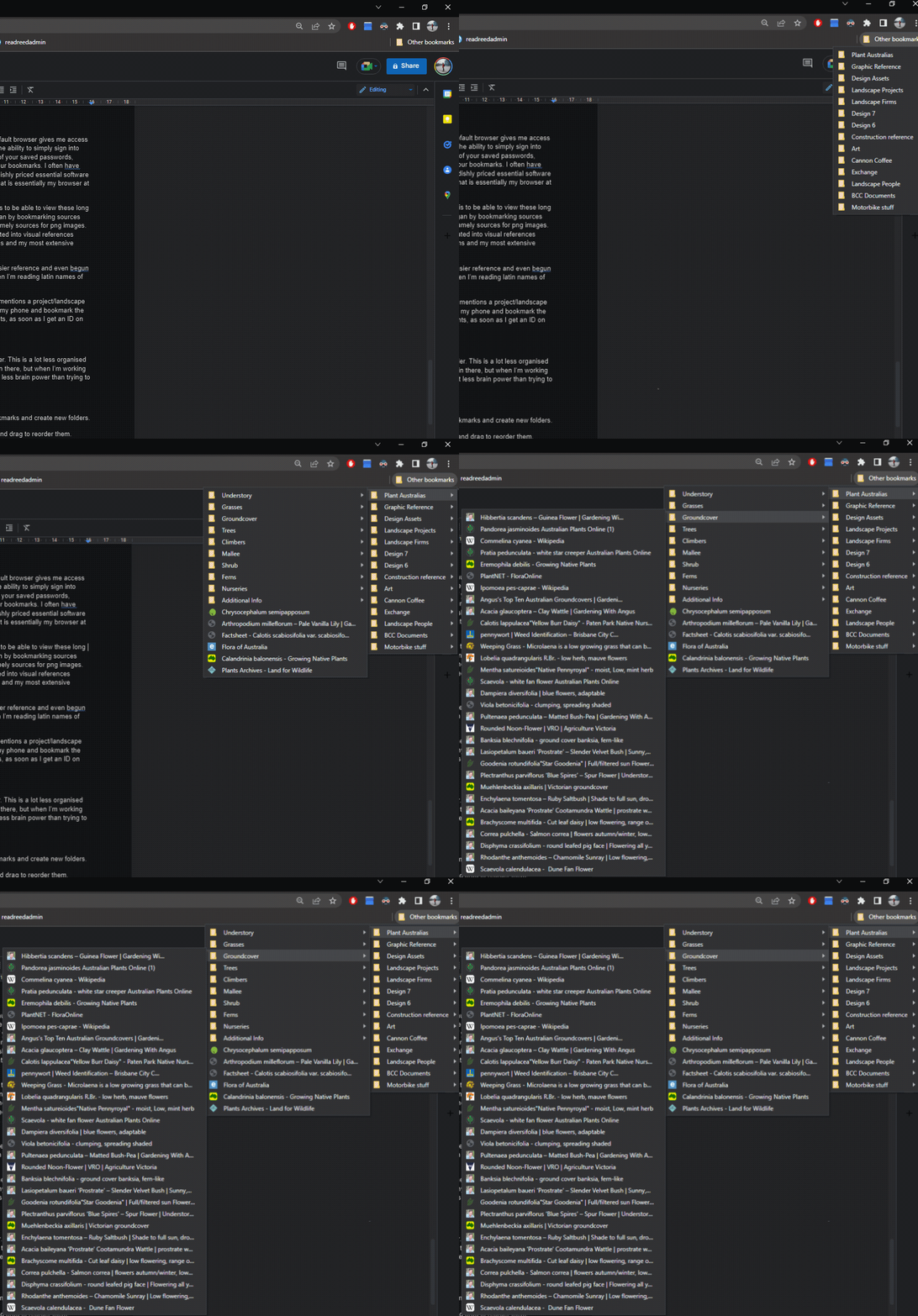
Within all of these categories, I subdivided even further for easier reference and even begun adding notes in the titles. This is particularly useful for me when I’m reading latin names of plants and thinking “what the fuck is that?”
The mobile component is also particularly useful. If someone mentions a project/landscape firm/artist I haven’t heard of, I can quickly go onto Chrome on my phone and bookmark the website to its relevant folder immediately. Same is true of plants, as soon as I get an ID on the plant, I add it in.
For my major design subjects at university I also create a folder. This is a lot less organised as I just dump websites that are pertinent to that assignment in there, but when I’m working on a large document, sifting through my bookmarks uses a lot less brain power than trying to remember specific resources.
Some practical stuff:
- Right clicking on your bookmark will allow you to rename bookmarks and create new folders.
- Folders are organised chronologically – but you can left click and drag to reorder them.
- Bookmark this blog 🙂
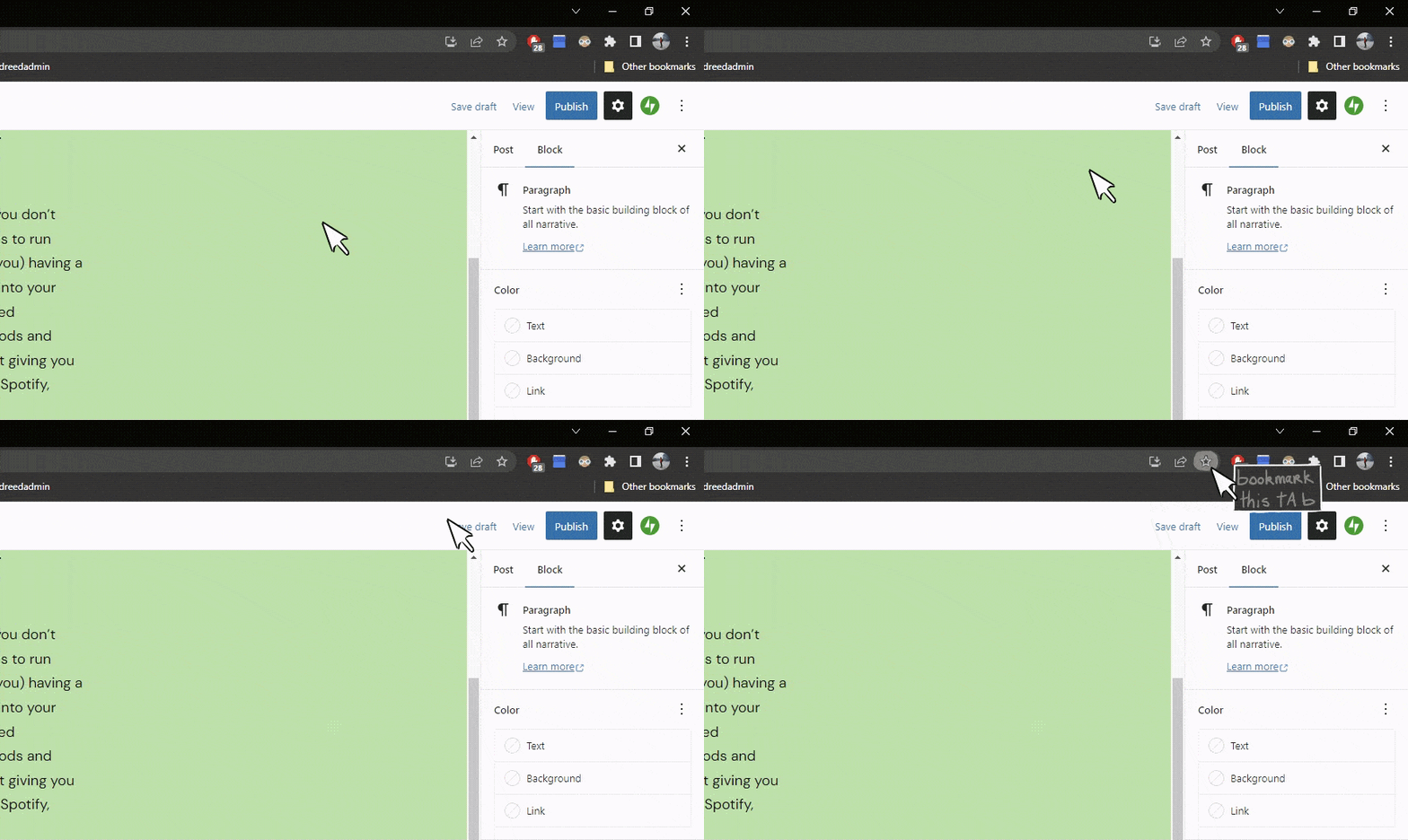
My advice would be to just start bookmarking, worry about the organisation a little later; you’ll be thanking yourself at 3am the morning before an assignment is due.
 Reed
Reed 
Leave a comment